Week – 1
Introduction to Nuke
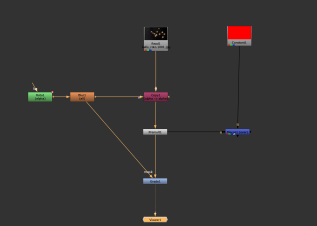
Class exercise understanding Merge nod
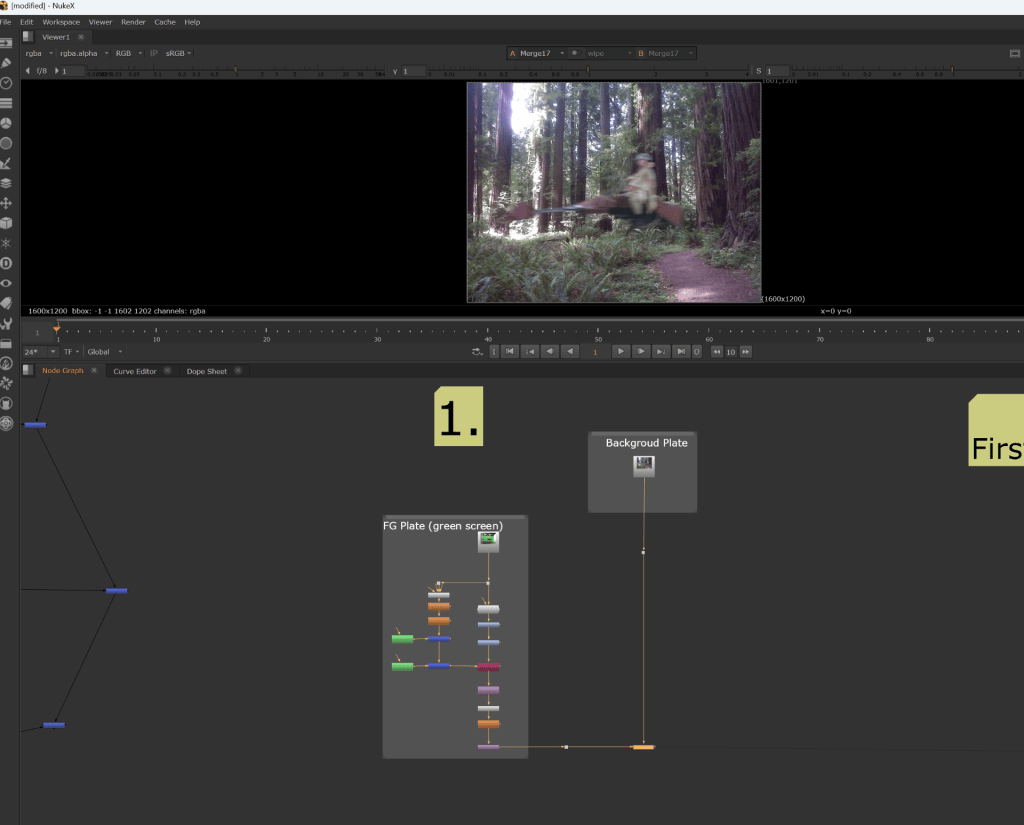
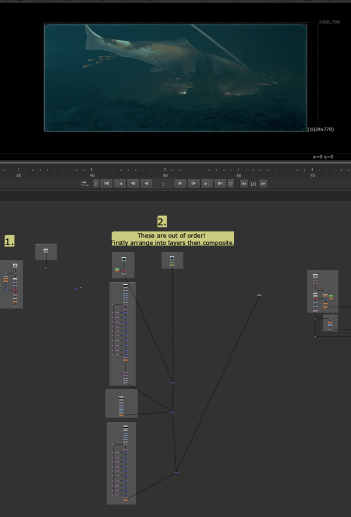
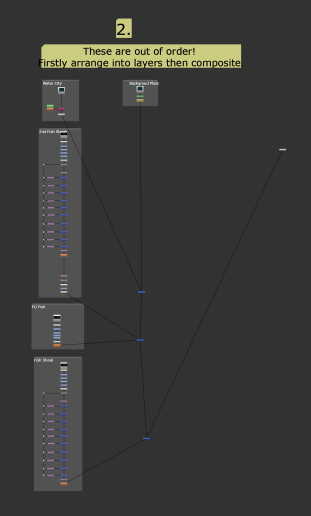
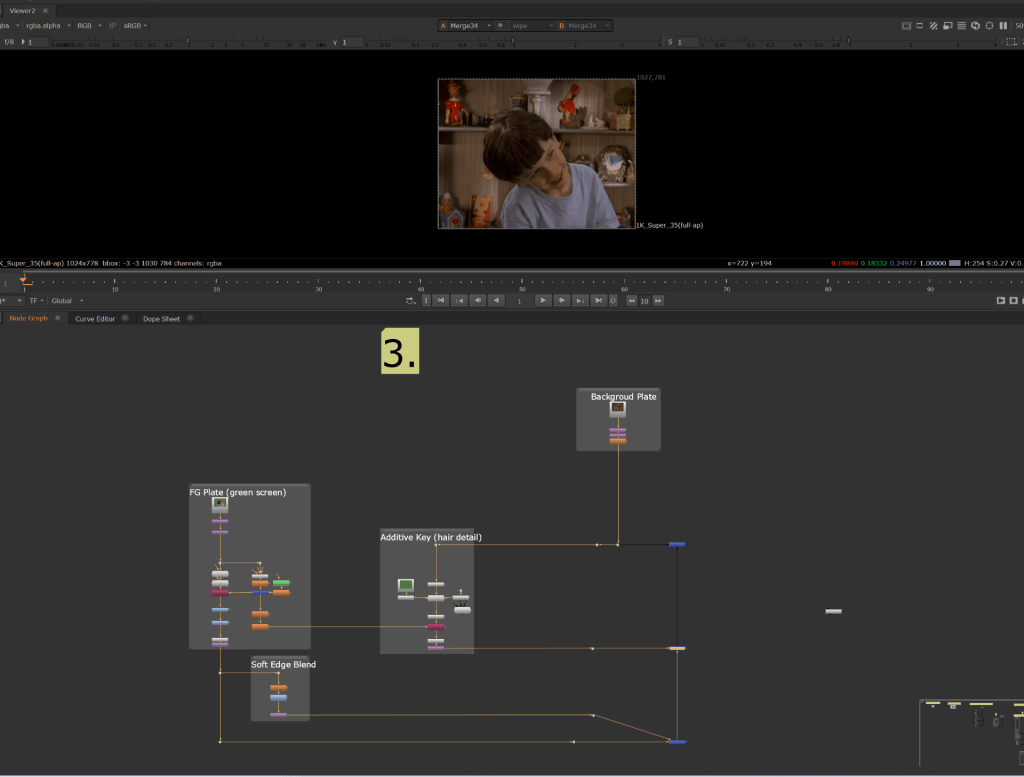
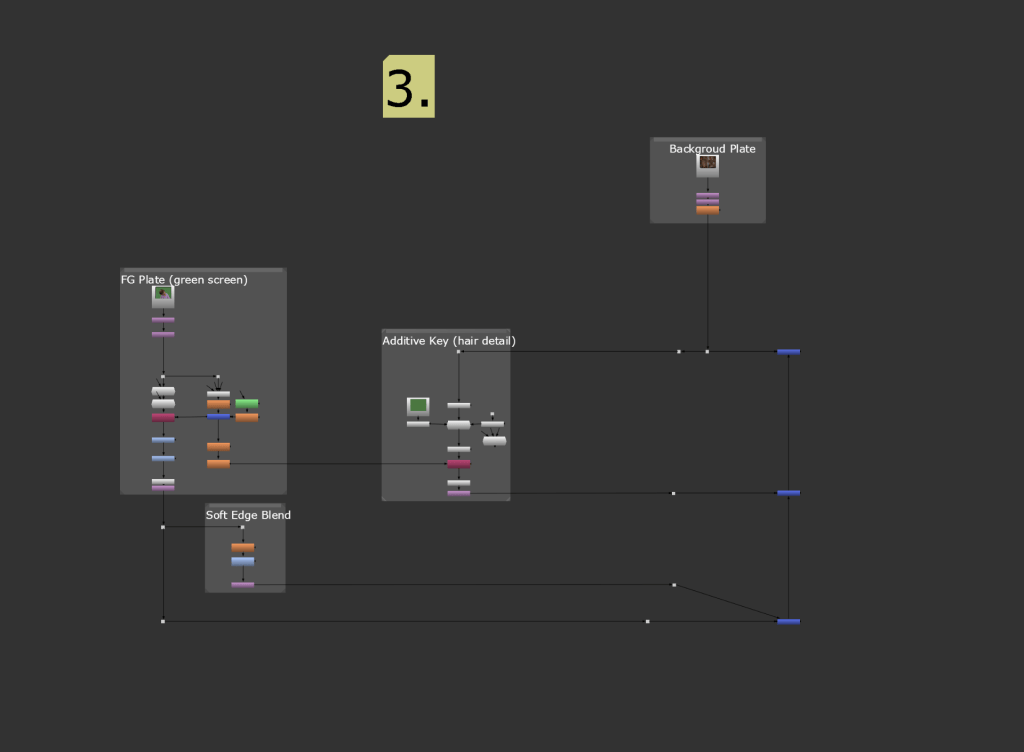
- Open NukeX.
- Press R in node graph to open files.
- After getting files, Press S on Properties panel to get settings, change Frame rate, FPS, Full Size Format.
- Add merge by pressing Tab Key, Search merge add it, cursor should be on node graph. connect with foreground image.
Week 2
Organization and Roto
Rotoscoping began as an animation technique of frame by frame drawings, but is now more frequently used as a VFX tool for hiding wires and creating CGI worlds.
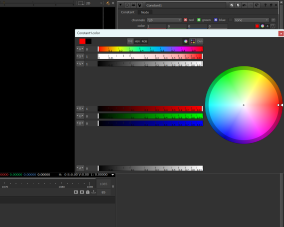
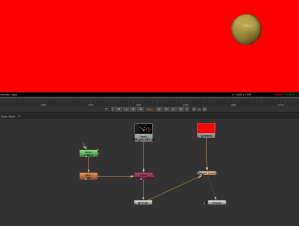
- Open NukeX.
- Press R in node graph to open files.
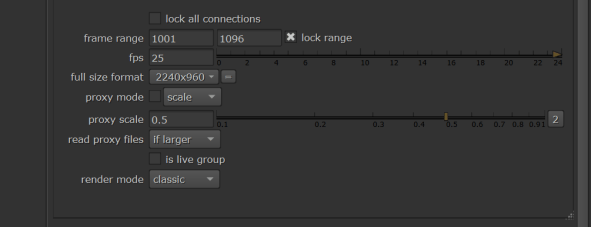
- After getting files, Press S on Properties panel to get settings, change Frame rate, FPS, Full Size Format.
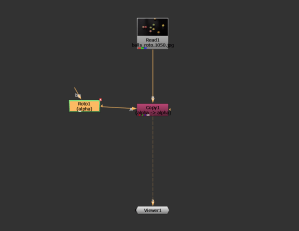
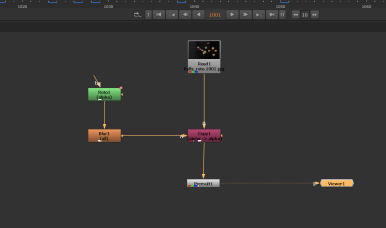
- Add merge by pressing Tab Key, Search merge add it, cursor should be on node graph. connect with foreground image.
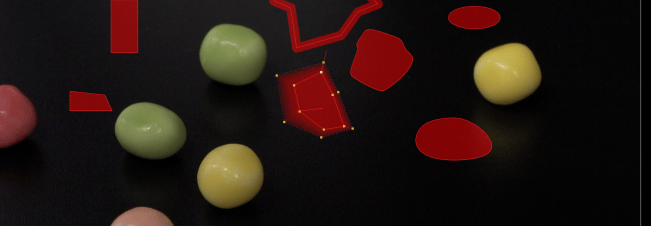
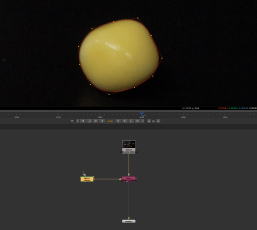
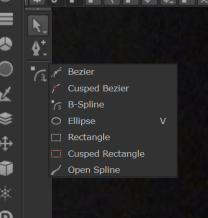
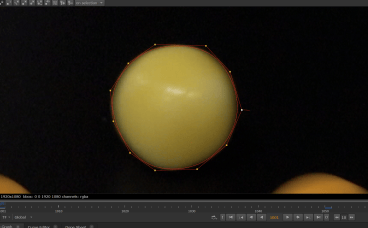
- Add Roto, mark around the ball, using Bspline or whatever.
- Do it when ever u see the ball moves.
- Remember to always go for sharp and still frame.
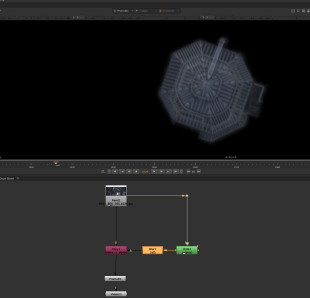
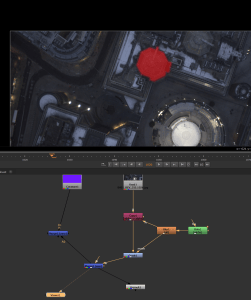
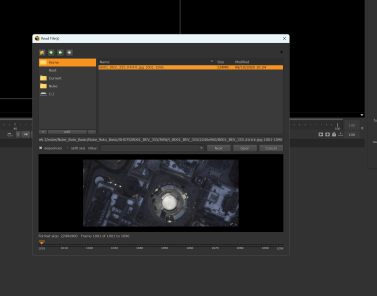
- Open NukeX.
- Press R in node graph to open files.
- After getting files, Press S on Properties panel to get settings, change Frame rate, FPS, Full Size Format.
- Add merge by pressing Tab Key, Search merge add it, cursor should be on node graph. connect with foreground image.
- Add Roto, mark around the building, using Bspline or whatever.
- Do it when ever u see the building moves.
- Remember to always go for sharp and still frame.
Week 3
Complex Roto
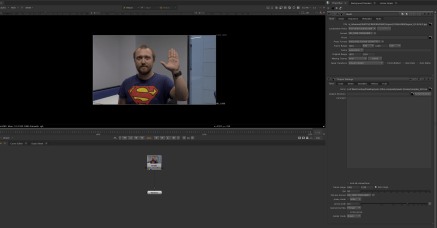
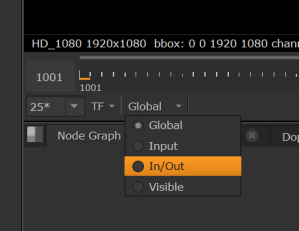
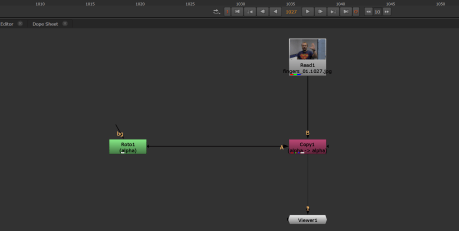
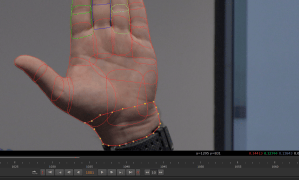
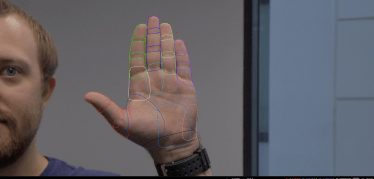
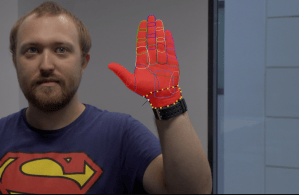
- Open NukeX.
- Press R in node graph to open files.
- After getting files, Press S on Properties panel to get settings, change Frame rate, FPS, Full Size Format.
- Add merge by pressing Tab Key, Search merge add it, cursor should be on node graph. connect with foreground image.
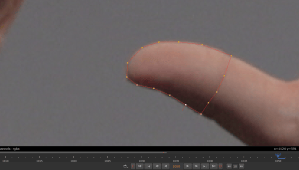
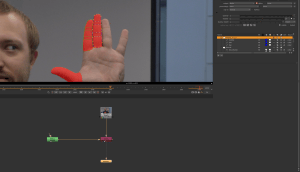
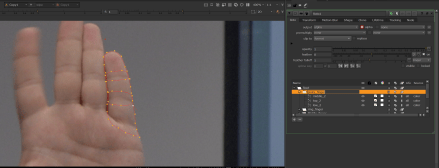
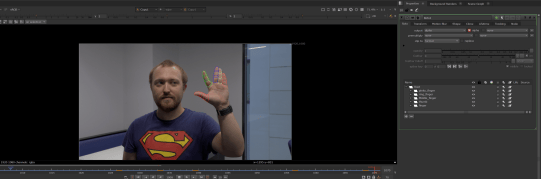
- Add Roto, mark around the fingers, using Bspline or whatever.
- Do it when ever u see the fingers moves.
- Remember to always go for sharp and still frame.
Week – 4
1 Exercise
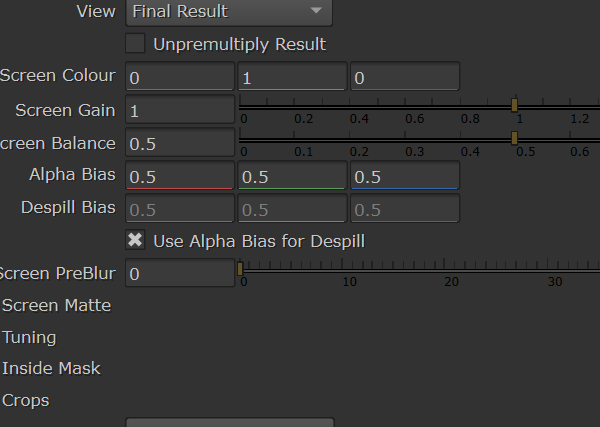
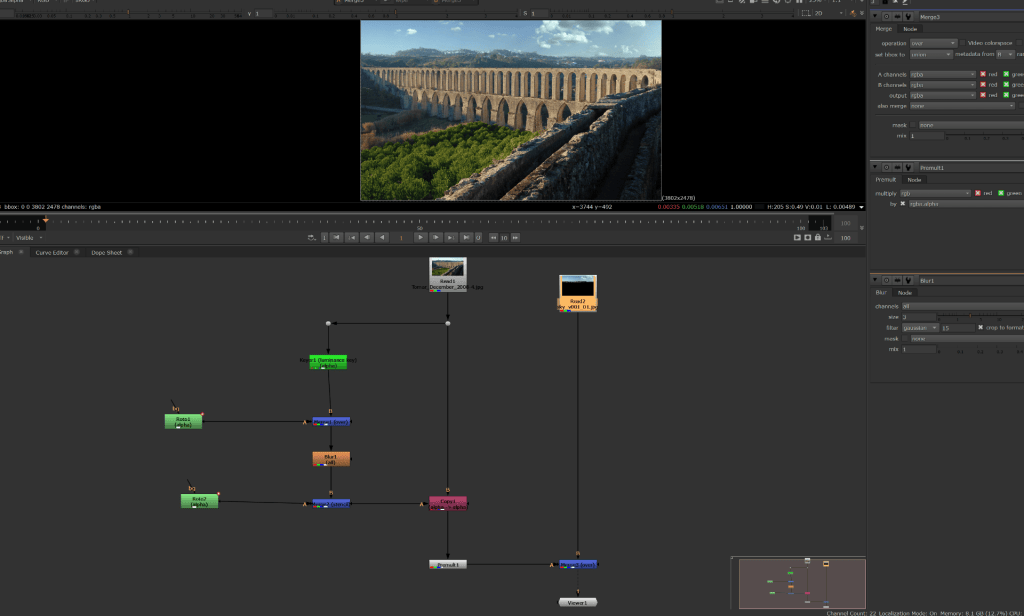
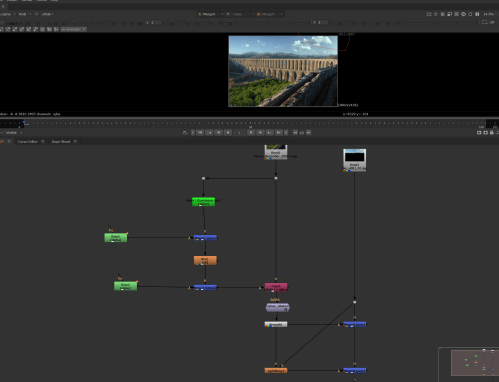
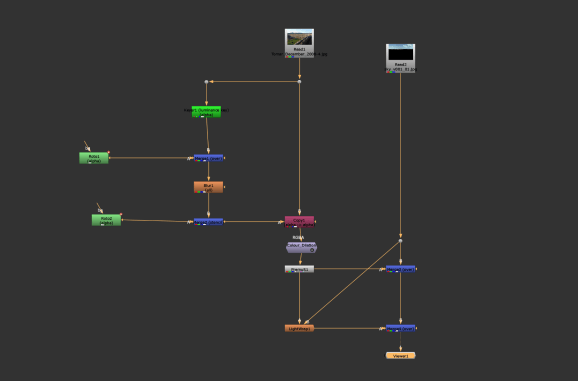
- Open NukeX.
- Press R in node graph to open files.
- After getting files, Press S on Properties panel to get settings, change Frame rate, FPS, Full Size Format.
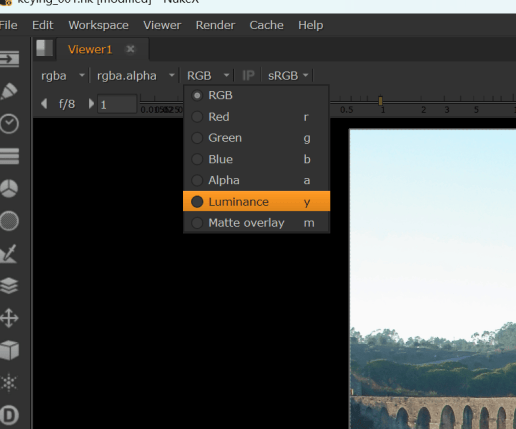
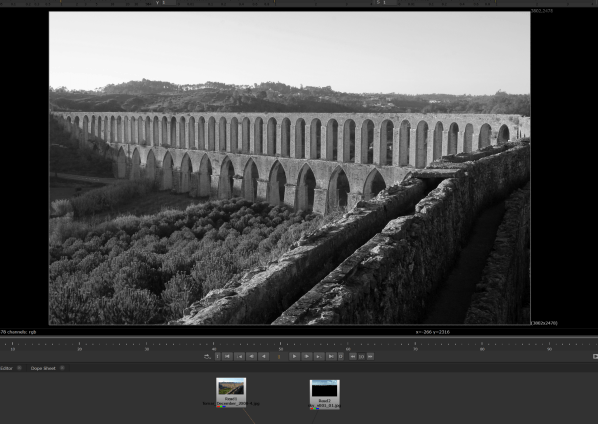
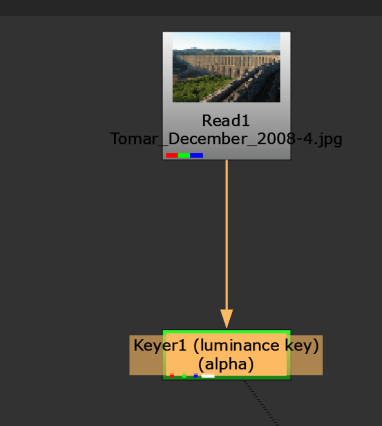
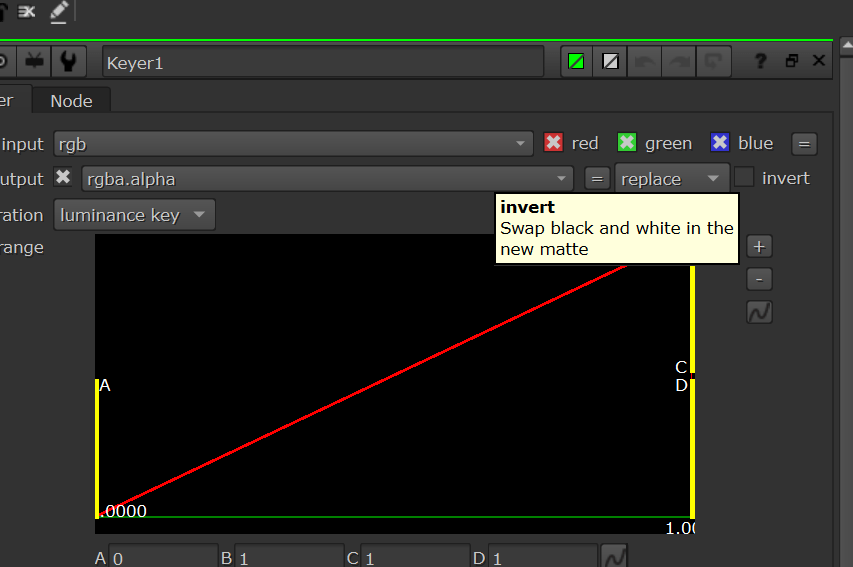
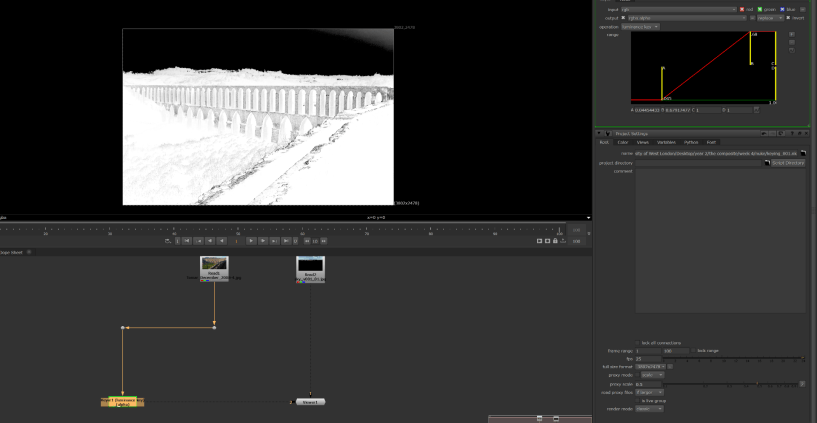
- Add Keyer by pressing Tab Key, Search keyer add it, cursor should be on node graph. connect with foreground image.
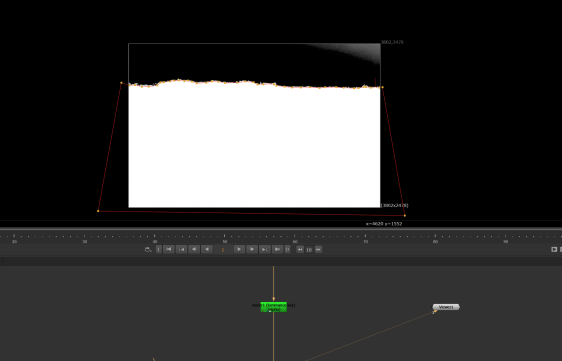
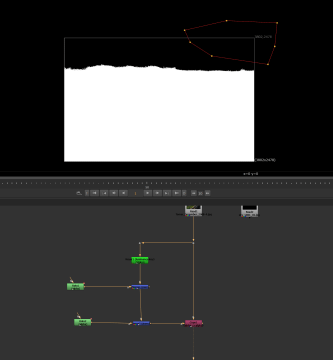
- Add Roto node and Merge(over), connect roto with merge(A) and merge(B) with Keyer.
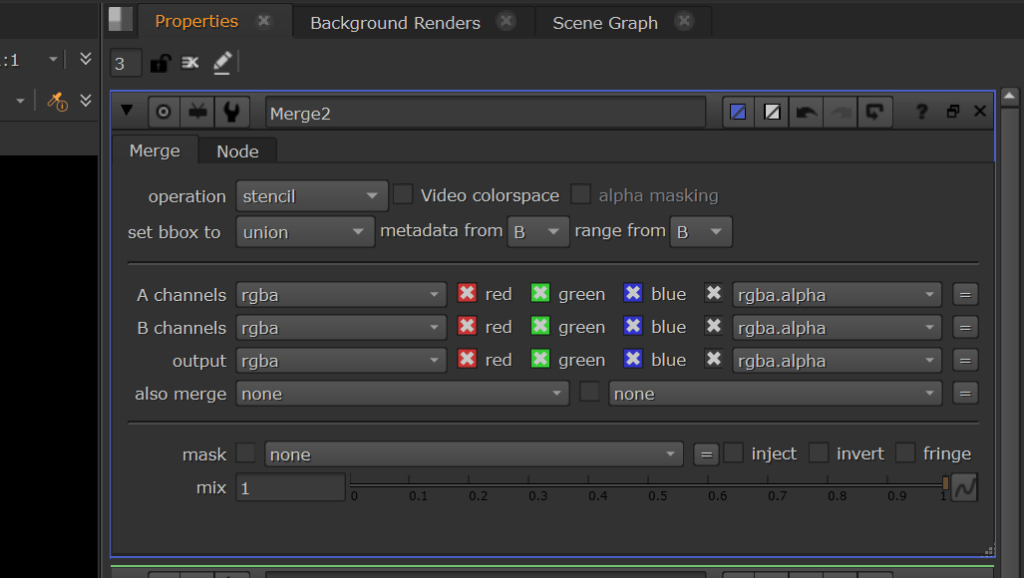
- Add another roto and merge(over) to remove unwanted backgound. Change merge(over) to Stencil.
- Add copy node, connect A with merge(stencil) and B with foreground image.
- Add premault (cut the part u roto), connect with Copy.
- Add mege, connect with background image.
- Connect premault with merge(over) which is connected with background image.
- Connect merge with viewer.
- Add blur to make it look good.
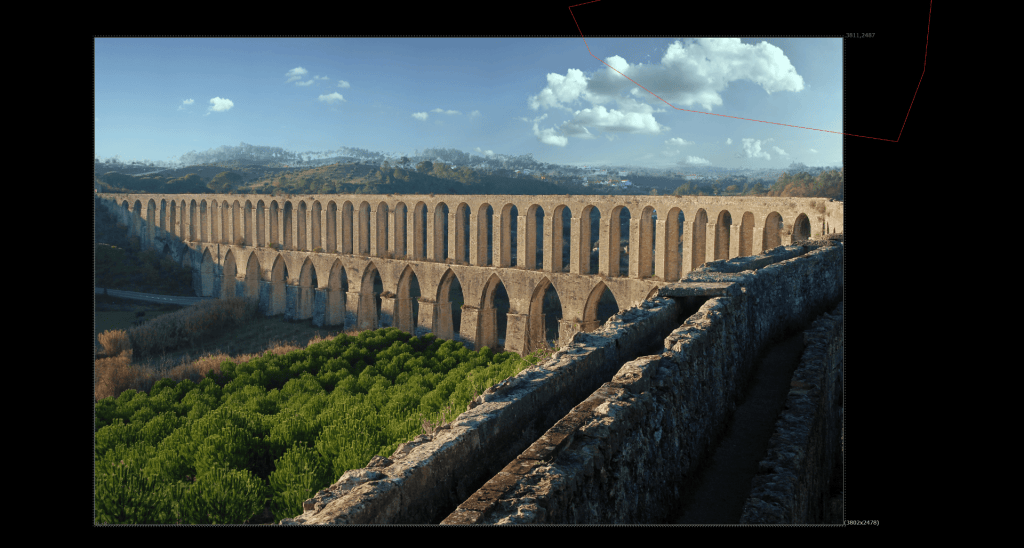
2 Exercise
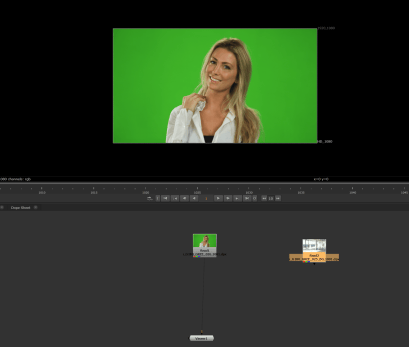
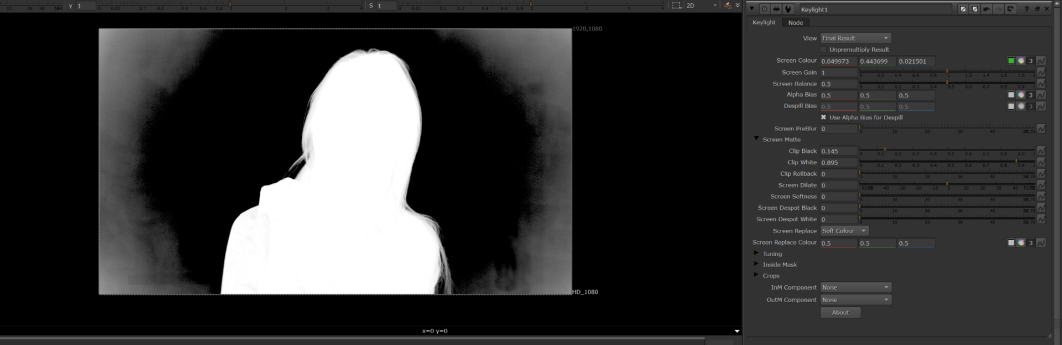
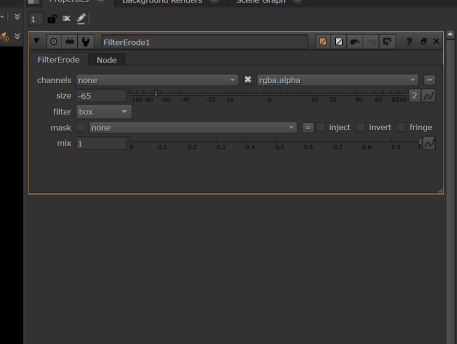
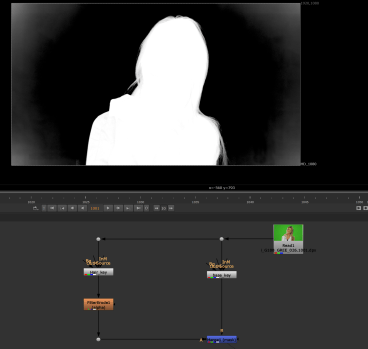
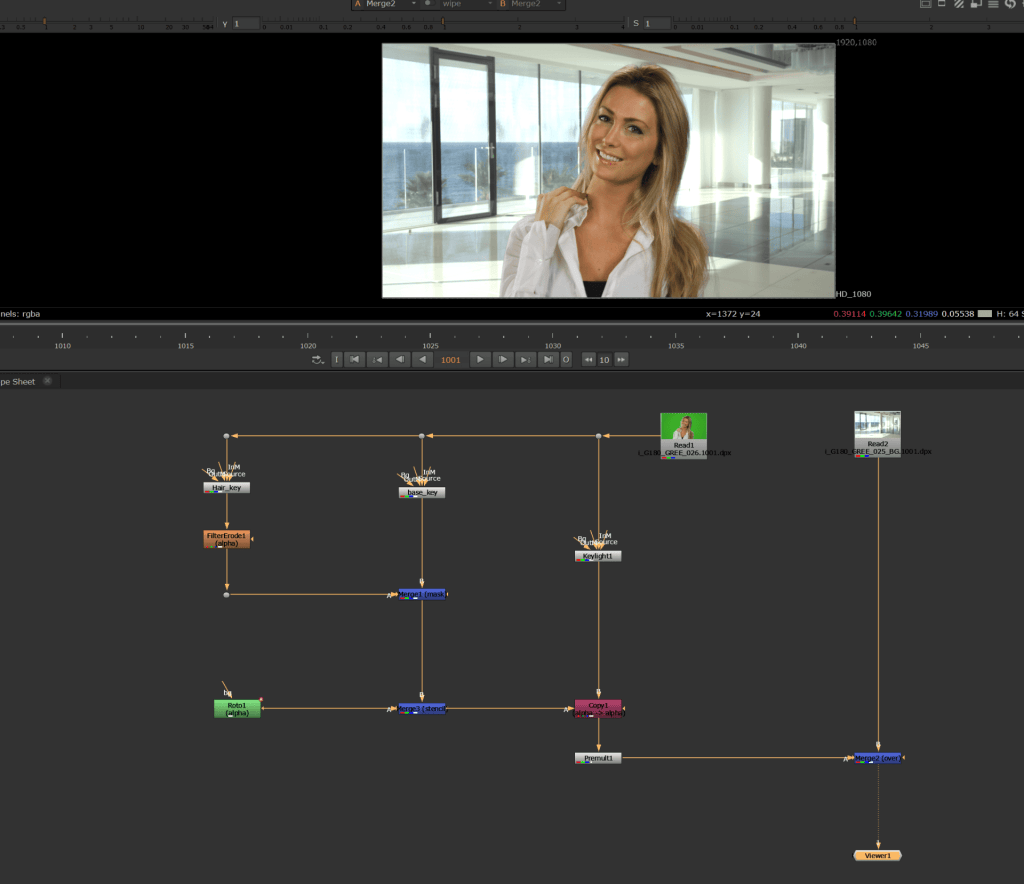
- Open NukeX.
- Press R in node graph to open files.
- After getting files, Press S on Properties panel to get settings, change Frame rate, FPS, Full Size Format.
- Add Keylight by pressing Tab Key, Search keylight add it, cursor should be on node graph. connect with foreground image. name it Base key.
- Click on black box right to screen color. u get a chorma key, drag it where the color is brightest.
- Add another keylight, connect it with foreground image. Add filter node connect it.
- On second keylight, sreen matte, play with clip black, clip white.
- Add merge, connect basekey and 2keylight.
- Add merge(stencil) & Roto, add copy, connect copy(A) to merge(stencil) & copy(B) to Image forground.
- Add premault.
- Add merge, connect merge(B) with image background to Merge(A) premault.
- Write node can be used to extract video.
Week 5
Colour and Grading
- Open NukeX.
- Press R in node graph to open files.
- After getting files, Press S on Properties panel to get settings, change Frame rate, FPS, Full Size Format.
Week 6
Tracking